Choose one output folder
Set Output Folder — All Exports at the top. Visual Media, Audio, and Batch Queue all use this shared destination. New queued jobs capture the folder and settings currently shown.
Gif2SL Studio 1.1.8
The shortest complete path through Visual Media, Audio, Batch Queue, uploading, and choosing the correct in-world player.
Set Output Folder — All Exports at the top. Visual Media, Audio, and Batch Queue all use this shared destination. New queued jobs capture the folder and settings currently shown.
Choose a GIF, animated WebP, APNG, animated AVIF, MP4, or WebM source. Set the range for video, choose texture size, planner, Frame Fit, and output format, then enable Fluid sequence or matching WAV only when the source supports them.
For a longer MP4 or WebM Fluid sequence, choose an 8-, 10-, or 15-second maximum per sheet. Studio divides the complete selected range into as many balanced consecutive sheets as the sequence requires while preserving every sampled frame.
Use Preserve Full Frame to retain the complete picture or Zoom to Fill for an undistorted centered crop. Check Source, Second Life Playback, and Texture Sheet before export.
Choose WAV, MP3, FLAC, M4A/AAC, OGG/Opus, WMA, or AIFF. The Audio Export Plan shows how the recording will be divided. Output is always mono PCM 16-bit, 44.1 kHz WAV in balanced segments at or below 29.9 seconds.
Add visual and audio files, review every queued job, and apply current defaults only where intended. Select exactly one MP4 or WebM job when assigning a separate alpha mask. Audio jobs ignore the visual controls.
Single sheet: put the texture, optional matching sound, and Automatic_GIF_to_SL_script.lsl in one prim.
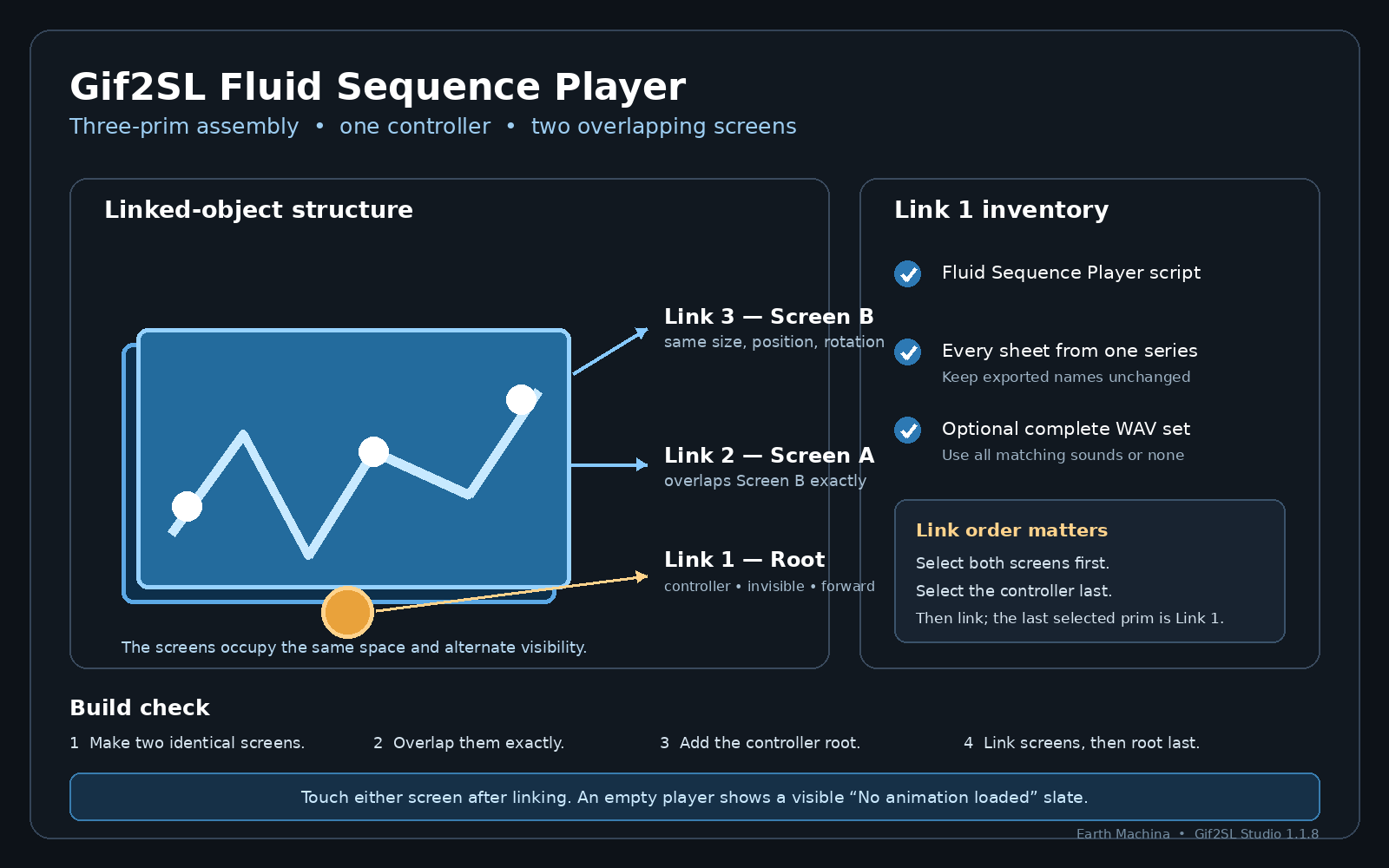
Fluid sequence: use the three-prim linked viewer and Gif2SL_Fluid_Sequence_Player.lsl.
Audio collection: use Gif2SL_Audio_Only_Player.lsl with the exported sound segments in one prim.
Do not remove or rewrite the .anim;… or .audio;… fields. For a Fluid sequence, upload every sheet and either every matching WAV file or no matching WAV files.
Read the creator license before distributing a finished product. Use the complete operations guide and illustrated three-prim setup when moving beyond a simple loop.
Interface map
Saves reusable visual conversion choices. Save As creates a named preset, Delete removes the selected named preset, and Defaults restores the standard visual settings.
The one visible destination for current visual exports, audio exports, and newly queued jobs. Browse chooses it; Open opens it in Windows.
Select, trim, mask, plan, preview, export, or add one image/video source to the batch.
Inspect one recording's balanced segment plan, export it immediately, or add it to the batch.
Collect visual and audio jobs, revise applicable defaults deliberately, set per-video masks, and export the reviewed queue together.